Everyone has the same problem with their media library: you know the photo exists, but you have no idea what it's called. Was it IMG_4821.jpg? Was it in the Italy album or the one from the conference? You end up scrolling for ten minutes looking for "that shot of the red bicycle against the blue wall."
Today we're shipping the fix. Semantic search lets you find media by describing what's in it. Type "red bicycle against a blue wall" and you get the photo — even though nobody ever typed those words as a caption, a tag, or a filename.
This post covers how it works, the new AI Search Index controls in album settings, and how to review its estimated cost.
What "semantic" actually means here
A normal search matches text. If you search "dog," it finds files with "dog" in the name or description, and misses the photo of your golden retriever labeled IMG_0042.jpg.
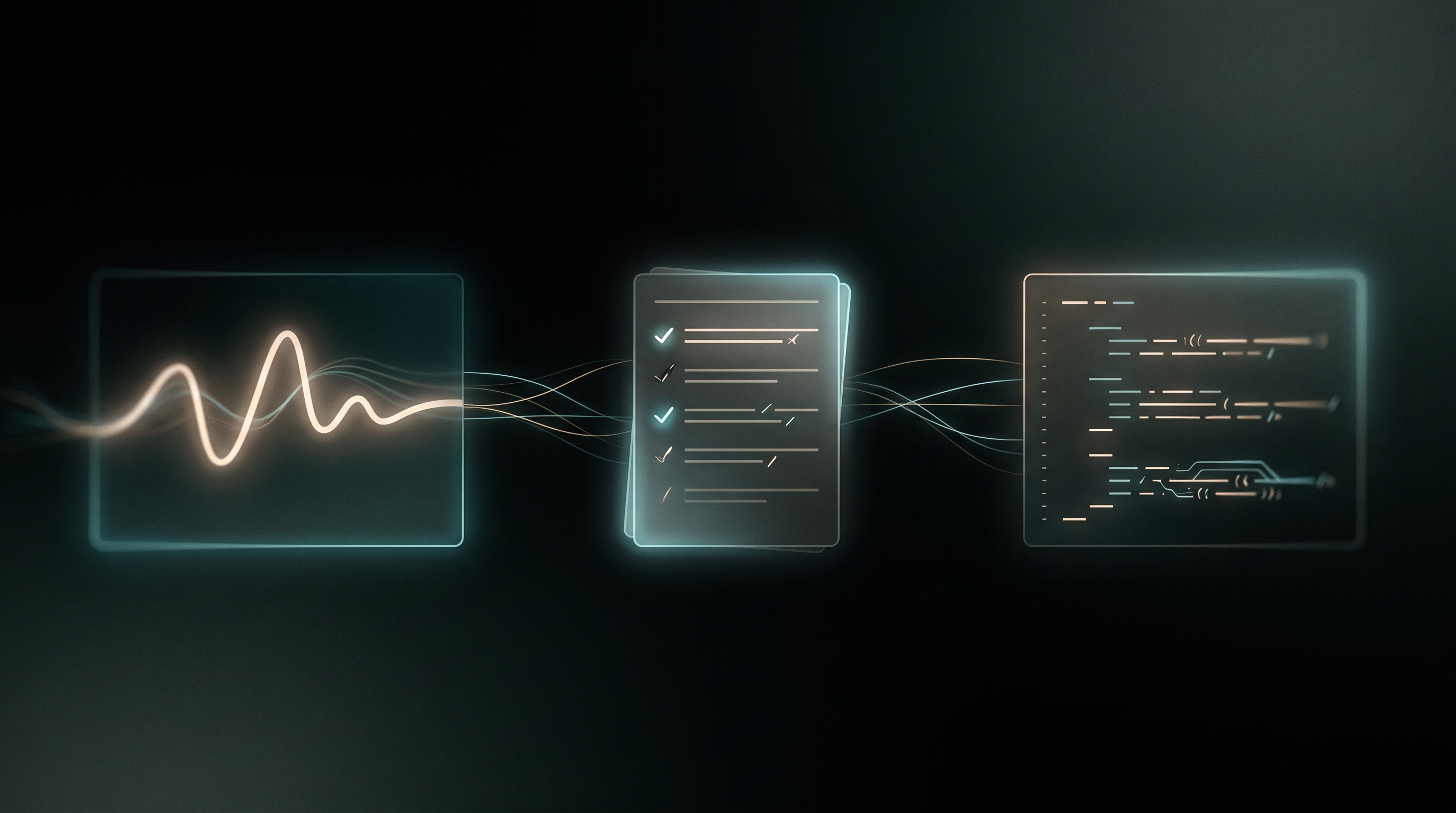
Semantic search matches meaning. Under the hood, every piece of media gets turned into an embedding — a list of numbers that captures what the content is about. Your search query gets turned into an embedding too, and we find the media whose meaning sits closest to your query.
The result: searching "celebration" surfaces birthday parties, fireworks, and a champagne toast — none of which contain the literal word "celebration." It understands the concept, not just the characters.
We use Google's gemini-embedding-2 model for this, and one detail makes it especially powerful: it's multimodal. It can read the pixels of an image directly, placing photos and text into the same shared "meaning space." That's why a text query can find an untagged photo — the image itself was understood, not just a caption someone wrote about it.
How indexing works (and why media types differ)
Before search can find something, that item has to be indexed. Here's what happens per media type:
- Photos are embedded directly from the image itself. If a photo already has an AI description, we fold that text in too for an even richer match — but a photo with no description at all still becomes fully searchable, because the model reads the image.
- Videos and audio are different. This indexing implementation first creates a short AI-generated summary of their content. That summary text is then embedded. If a video already has a description, we skip straight to embedding it.
The upshot for you: photos can take a shorter processing path, while videos and audio may first need summarization. Indexing is asynchronous and can take minutes to hours. A summary can omit a detail you later search for, so recall differs by content and media type; a missing result does not prove the original file is absent.
The AI Search Index, right in album settings
We used to nag you with a banner above every album: "12 images missing AI description." It was in your face, and worse, it asked you to commit to indexing without telling you what it would cost. That banner is gone.
In its place, every album owner now has an AI Search Index section inside Album Settings (it sits between Album Sharing and the Danger Zone). It's calm, on-demand, and honest about cost. When you open it, you'll see one of a few states:
- All indexed — a green checkmark and "All media in this album is indexed for semantic search." Nothing to do.
- Work pending — a breakdown of what's left, like "12 photos · 3 photos with descriptions · 1 video needs a summary first," a cost estimate, and a Generate button.
- In progress — "Indexing already in progress. Batch jobs can take a few minutes to a few hours," with a Refresh link to check back.
You decide when to index, album by album (or your whole library at once). In this manual Album Settings flow, Generate submits the indexing request. Other enabled automations or description-generation features can also perform AI work; check their settings separately.
The steps below use Album Settings in the web app.
What it costs
Indexing and semantic search can use included AI credits, so you do not need to set up your own Gemini API key to try them. The Free plan includes 500 credits once per account: 50 at signup, then 450 after your first upload or 24 hours. Paid plans include monthly allowances; see pricing for the amounts and renewal terms.
Usage depends on the model and the work involved. Videos and audio may need a summary before indexing, adding to the cost. Review the estimate in Album Settings before generating an index, and check AI Credits in Settings for your remaining balance. Uploading files and browsing your library do not require AI credits.
You can buy more AI credits in Billing settings when you need them.
If you choose to save your own Gemini API key, it takes priority over credits and Google bills that usage directly. AI credits are separate from workflow compute credits.
Re-run checks and recovery
The index tracks content fingerprints and processing state so it can skip eligible items already indexed with the current representation. A changed description, content, model, or index version may require new work; “already indexed” is not a promise that every future rerun will be free.
Check the pending count and cost estimate before submitting. If a batch appears stuck, use Refresh and inspect its status before submitting another request. Jobs are tracked for recovery, but outages and provider failures can still require investigation. Record the album, job time, and displayed status, and contact support for a persistent failure or a charge that does not match the result. Do not send private media or API keys in the initial message.
How to try it
- Open any album you own and go to Settings.
- Scroll to the AI Search Index section.
- Review the breakdown and the estimated cost.
- Click Generate to index using available AI credits, or your own Gemini API key if you have saved one.
- Give it a few minutes for photos — videos may take longer while they're summarized — then use the album's search box and describe what you're looking for.
Try three queries against known items in a small album: a visible object, a scene, and a detail mentioned in an audio/video summary. Inspect the actual result. If the index is complete but a query misses, try a more specific description and compare the stored summary with the source before indexing your whole library.
Prefer the terminal? Use the CLI
Everything above is also available from the 5am CLI — handy for scripting, bulk work, or wiring search into your own tools.
Index an album (the same indexing path as the web UI):
5am albums generate-summary YOUR_ALBUM_ID
It's async and idempotent — re-running on an already-indexed album submits nothing and just reports "Already indexed — nothing to do."
Search by meaning:
5am media semantic-search "sunsets at the beach"
5am media semantic-search "wedding photos" --album YOUR_ALBUM_ID --limit 20
Sign in with the current CLI to use your available AI credits. If you prefer your own Gemini key, set it with 5am keys set gemini YOUR_GEMINI_KEY; Google then bills that usage directly. The index call embeds your media, and the search call embeds your query. Results come back as JSON by default — add --pretty for a readable table.