At 5AM, our goal has always been to build a unified hub for creative expression. We started with photo storage, moved into AI-assisted image generation, and brought it all to your terminal with the 5am CLI.
Today, we're expanding into sound and video with the release of Podcast Studio—a self-contained tool that turns text, web pages, Hacker News threads, RSS feeds, or user-uploaded media into a fully produced, multi-voice "radio talk show" podcast. And when you're ready to share your show on platforms that demand video, you can wrap it with an animated waveform overlay—and timestamp-synced burned-in captions—using the companion 5am CLI.
The feature is live right now: visit the web app at /podcast or update your CLI to get started.
Browser editing, remote AI processing
Script generation, speech synthesis, transcription, and optional cover-art generation are AI requests, not computations performed solely on your device. With your own Gemini key, the client sends those requests to Google. Supported requests can instead use AI credits through 5AM's proxy. Anonymous guests need their own key. Current access and billing.
The browser manages the editing interface, playback, and WAV assembly. URL/RSS intake can use a server fetch, and saving an episode to your album uploads it to 5AM. These are separate data flows; “browser editing” does not mean the source material or generated audio never leaves the browser.
Review imported material and the generated script before synthesizing speech. A conversational rewrite can omit context or introduce unsupported statements. A generated voice is not evidence that the person or source being discussed endorsed the episode.
How It Works: The Web Experience
When you visit /podcast, you’ll step into a dark-themed virtual recording studio designed to handle everything from intake to final export.
1. The Intake Board
Choose from these input modes to seed your episode:
- Text & Files: Paste a text draft or script.
- URL & RSS Feeds: Provide any website link or podcast feed. (Our server assists behind the scenes with a secure, CORS-compliant fetch to keep your browser safe).
- Hacker News: Browse and pull top stories directly into your feed.
- Media Upload: Upload a local audio/video file; Gemini will transcribe it on the fly to use as the source material.
Before generating, you can customize your Cast. Add anywhere from 2 to 8 speakers (a host and up to 7 callers), assign them custom names, write character descriptions to guide their talking points, and choose from the voices offered in the current voice selector.
2. Intelligent Scripts & Vocal Performance
When you hit "Generate", gemini analyzes your intake material and generates a radio script in a structured JSON schema mapping back to your custom cast names.
We feed this script to Gemini from the browser, segment by segment, through your selected Gemini access. Delivery cues are sent separately from spoken text; saved cues such as [laughs] and [sighs] are translated to the model's vocal tags. The client normalizes generated audio to 24 kHz mono WAV for playback, episode assembly and segment-timed transcripts. Motion Studio reuses this speech client for short ad narration.
3. The Studio Dashboard
Once your episode is ready, the interface transitions to the Studio View:
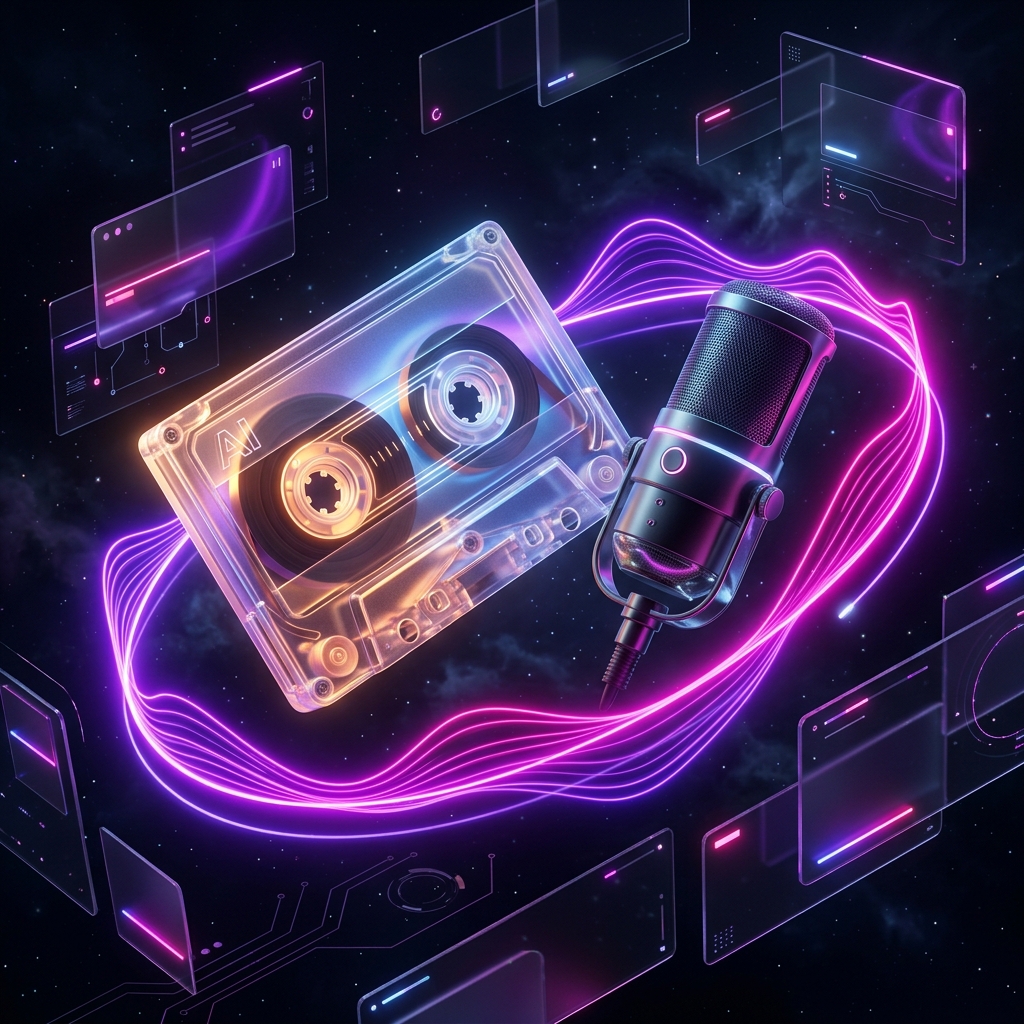
- Tape Deck: A retro animated cassette tape that spins during playback, bordered by a glowing circular progress ring.
- Teleprompter: A scrolling script highlighting each spoken line in real time. Want to change what a speaker said? Click the edit pencil on any segment, rewrite their line, and press
Ctrl/Cmd + Enter. The studio immediately invalidates the cache for that segment and synthesizes a new audio clip on the fly. You can also click any segment to jump playback directly to that line. - On-Demand Cover Art: Click to generate custom 1:1 square album art using
gemini-image-generationbased on your episode's title and summary. The artwork displays on the cassette reels and is ready to download.
When you're happy with the edit, click Download WAV to compile all segments locally into a single audio file, or Save to Album (for logged-in creators) to add the WAV directly to your 5AM media library.
4. Timestamp-Synced Transcripts
Alongside the WAV, the Export panel lets you download a transcript in three formats—.vtt, .srt, or .json. These aren't rough approximations: the timestamps are derived from the exact byte position of each segment in the compiled audio (24 kHz mono PCM, so every 48,000 bytes equals one second), so segment boundaries follow the assembled WAV. This does not establish word-by-word timing or guarantee that the generated script accurately represents the source material.
That precision is what makes the next step possible. The .srt/.vtt files drop straight into the CLI as burned-in captions, and the .json—a structured list of { speaker, text, startMs, endMs } cues—is perfect for programmatic workflows like timing AI-generated b-roll scenes to the dialogue.
From Audio to Video: The CLI Integration
Audio files are perfect for RSS feeds, but platforms like YouTube, Instagram, X (Twitter), and TikTok require video.
To bridge this gap, the 5am CLI includes the media visualize command. It takes your downloaded WAV file and cover art and turns them into a high-definition H.264 MP4 video featuring a dynamic, animated audio waveform.
Quick Example
If you have downloaded episode.wav and your generated cover art cover.png from the Podcast Studio, run the following command in your terminal:
5am media visualize episode.wav \
  --cover cover.png \
  --output episode.mp4
This renders a 16:9 widescreen video with your cover art letterboxed on a clean slate-950 canvas and a Winamp-style scrolling waveform across the bottom quarter.
Burn In Your Transcript as Captions
Remember the transcript you downloaded from the Studio? Pass it with --subtitles and the CLI burns it in as captions, positioned just above the waveform strip:
5am media visualize episode.wav \
  --cover cover.png \
  --subtitles episode.srt \
  --output episode.mp4
The captions use the timing of the assembled audio segments. Check the result, especially long lines and edited segments; this export is not word-level forced alignment. The CLI accepts both .srt and .vtt; styling and positioning are handled for you, legible white-on-translucent text on the dark canvas.
Advanced Visualizer Controls
The CLI visualizer is highly configurable depending on your target platform:
- Aspect Ratios (
--aspect):16:9(default) for YouTube1:1for Instagram and grid feeds9:16for vertical videos (TikTok, Shorts, Reels)
- Visualization Styles (
--style):showwaves(default): Classic oscilloscope linesshowfreqs: Frequency spectrum barsshowcqt: Constant-Q transform color bandshowspectrum: Waterfall spectrogram display
To generate a vertical video with frequency bars and burned-in captions for TikTok, you can run:
5am media visualize episode.wav \
  --cover cover.png \
  --subtitles episode.srt \
  --aspect 9:16 \
  --style showfreqs \
  --output tiktok-reels.mp4
Note: The CLI visualizer requires a local installation of ffmpeg. If you run the command without authenticating (5am login), your video will include a small "Powered by 5AM" watermark in the bottom-left corner.
Going Further: AI B-Roll in One Command
Want more than a waveform? There's a one-shot wrapper, podcast_to_video.py (stdlib-only Python — nothing to install, runs on macOS, Linux and Windows), that automates the whole pipeline. In its default mode it measures your audio, generates enough short Veo b-roll clips to cover it, stitches them together, lays your podcast audio on top, and—with --subtitles—burns in your transcript. Give it your transcript and it even has Gemini write per-scene prompts so the visuals track the conversation:
# AI-generated b-roll behind your episode, with captions
python3 podcast_to_video.py -i episode.wav -s episode.srt -a 9:16
Prefer the waveform look without writing the media visualize flags yourself? The same script does that too with --visualize --cover cover.jpg. One script, both paths.
Grab it from digvan/5am-cli — Apache-2.0, alongside its test suite so you can adapt it and immediately check you haven't broken anything.
Ready to Broadcast?
Whether you're looking to summarize long documents into conversational audio, turn blog posts into podcasts, or share your terminal commands as animated talk shows, Podcast Studio makes the process seamless.
- Head over to /podcast to record your first show.
- Sign in to use available AI credits, or supply your own Gemini key. Review the source and generated script.
- Tune the cast, edit the script, and download the master WAV plus a
.srt/.vtttranscript. - Run
5am media visualize episode.wav --cover cover.png --subtitles episode.srt --output episode.mp4and inspect the downloaded video.
We can't wait to hear what you create. If you have feedback on voice quality, custom scripts, or CLI options, reach out to us!