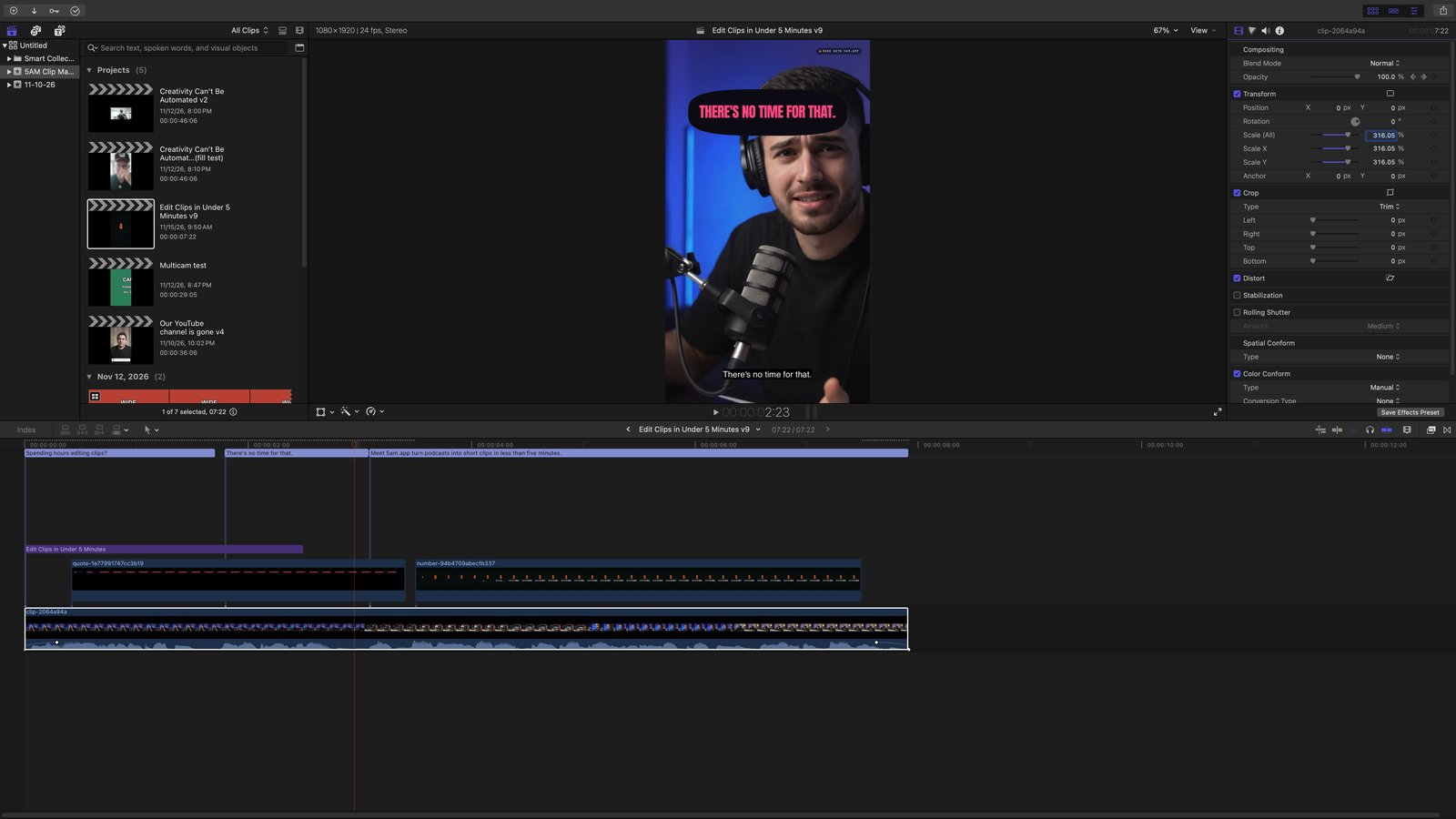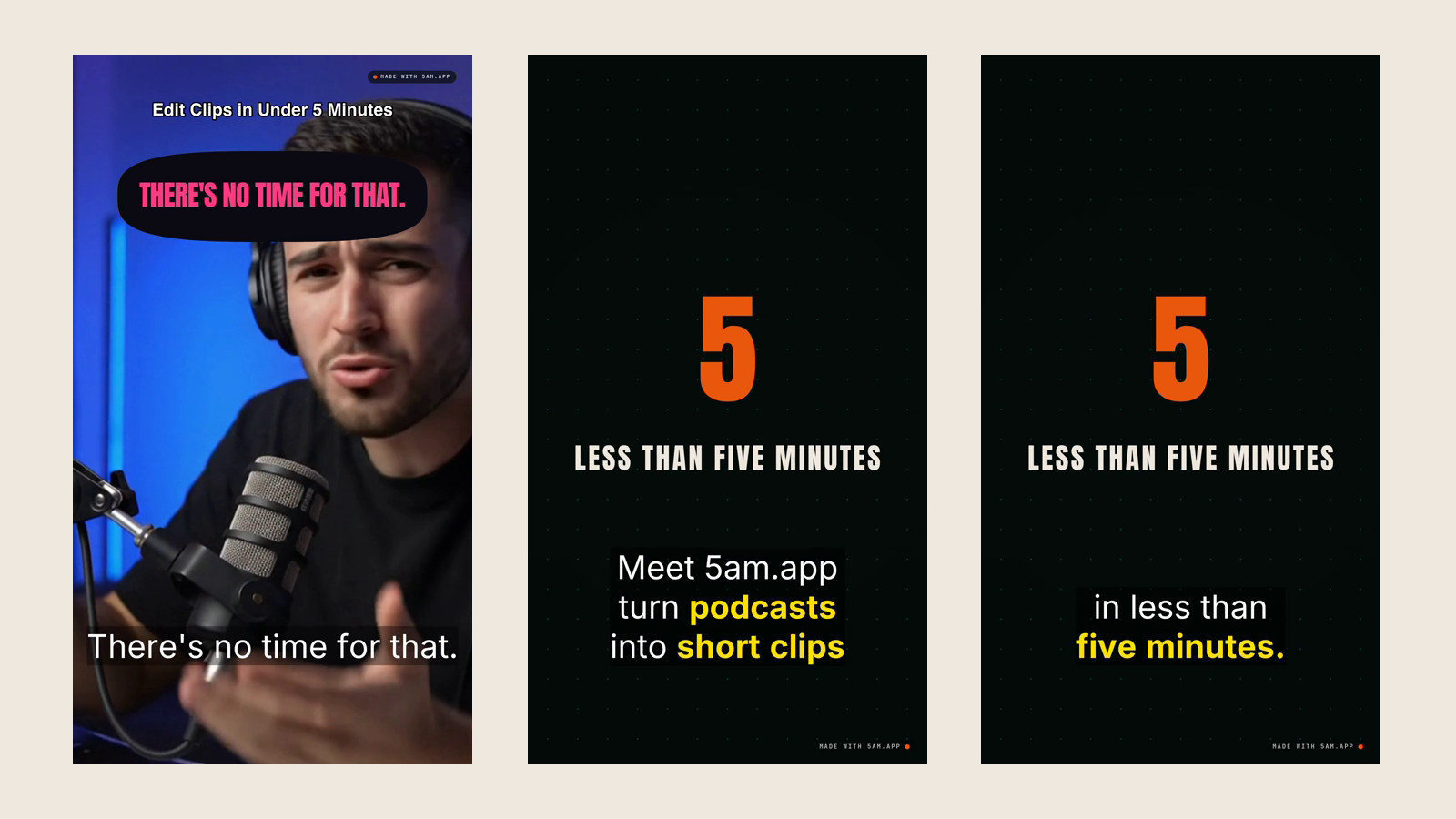
Someone says the line that makes the clip: "turn podcasts into short clips in less than five minutes." In your Short it flies by in two seconds of captions. An editor would cut to a graphic there, the number counting up while the guest keeps talking. That used to mean a second app, a template, and typing the figure in by hand.
Motion graphics in Clip Maker make that graphic from the clip itself. Pick a moment and a kind of graphic, and the AI writes it from what is said there and places it in the clip, full frame or over the speaker. Or leave a note, "put the five minutes on screen here, counting up", and Apply notes makes it for you. Either way, every word and number on it is checked against what was actually said.
Five kinds of graphic
- A number: one figure they say, big, with its label, often counting up to it.
- A list: the items they name, revealed one by one.
- A chart: the numbers they give, as bars or a line.
- A quote: one sentence they say, word for word.
- A lower third: a speaker's name and role.
Each runs 1.5 to 15 seconds, and a clip takes up to two, on top of the editorial cards. The original sound keeps playing underneath.
Add one from the Look tab
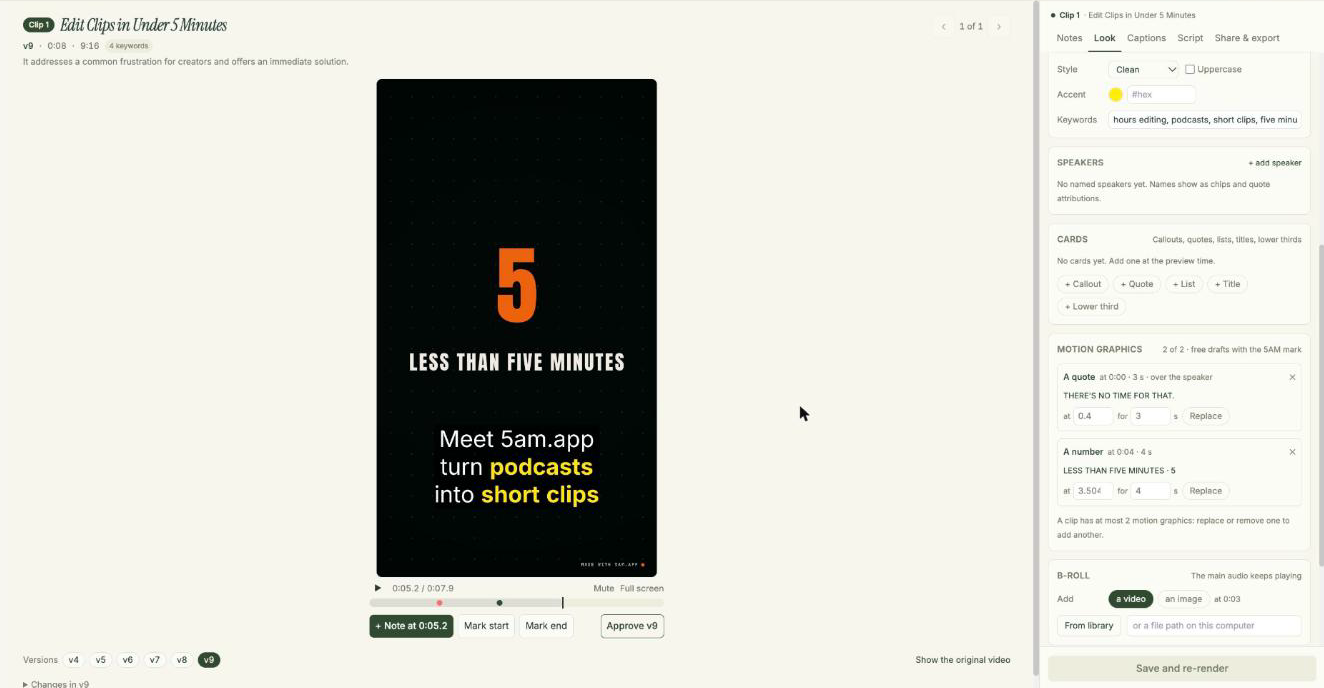
Pause the clip where you want the graphic and open the Look tab. In the Motion graphics group:
- Choose a kind: A number, A list, A chart, A quote or A lower third.
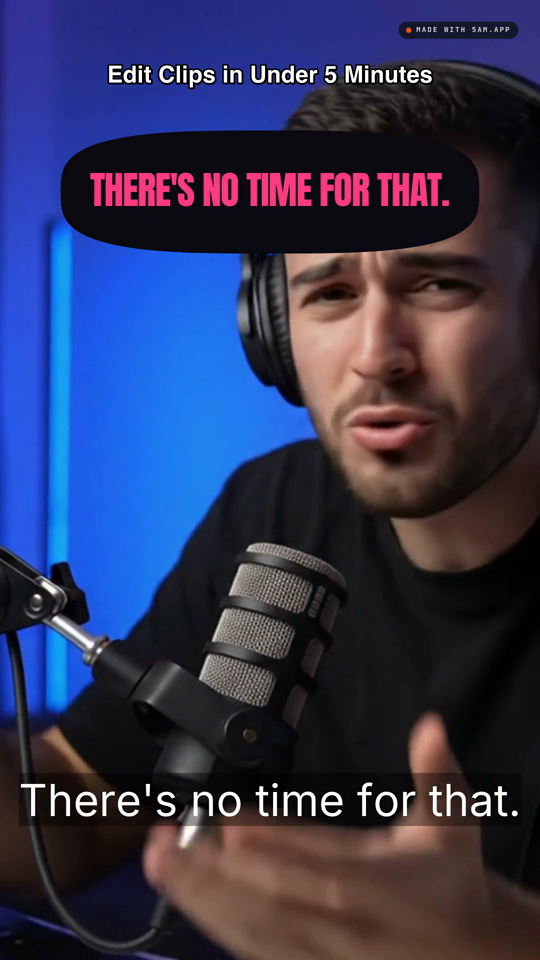
- Choose where it sits. Full frame (cutaway) fills the frame for a few seconds. Over the speaker (overlay) lays a transparent graphic on the picture, with every word on its own plate so it reads over anything.
- Say what it shows, or leave the box empty and the AI picks from what is said around that moment.
- Press Add a motion graphic at the playhead.
Clip Maker checks the graphic, draws it on your computer and re-renders the clip as a new version ("Added a motion graphic (a number) at 0:12."). The group lists it with the words it shows. Change at or for and press Apply to move it or change its length, without asking the AI again. Replace writes a new one in its place, and ✕ removes it. Like a card, a graphic is tied to its moment in the recording, so it stays with its words when you trim.
Or ask for it in a note
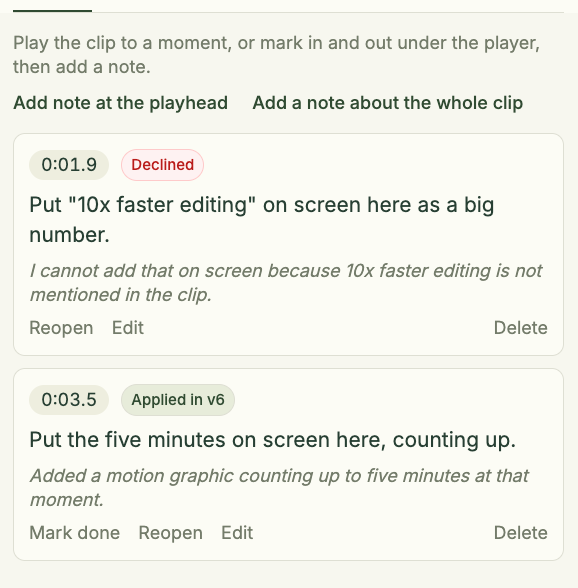
Pause where the graphic should go, press + Note at 0:03.5 under the player (or N), and write "Put the five minutes on screen here, counting up." Then press Apply notes (the button counts them: Apply 1 note).
The AI decides how to answer each note. One that asks for what a card can't do (a chart, several numbers together, a number counting up, items revealed one by one) becomes a motion graphic at the moment the note is pinned to, made in the same step. One that asks for a single figure, quote or name may get a card instead. The note's reply and the version's changes say what was added. Graphics from notes are always full frame; to put one over the speaker, use the Look tab.
This works for your reviewers' notes too, under the same checks as yours. A graphic made from a reviewer's note can't carry pictures or drawings, so a note can never put copy or images of its own on your clip. Reviewers see it in the next version you send them.
Only what was said
A graphic is the most quotable frame in a clip, so it has to be right. Before anything is drawn, Clip Maker checks every word and number on it against what is said around that moment:
- Every number must be one they said, in digits or in words: "37%" passes because the guest said "thirty-seven percent". A figure nobody said is refused.
- Every word must be said there, apart from small joining words like "a" and "the".
- Quotes are word for word. A quote, and any line of five words or more, must read exactly as it was said.
- Names come from your speakers. A graphic may show the speaker names you set and your brand name. Anything else, including the role in a lower third, must be said in the clip.
- Lists may be numbered. A list's 1, 2, 3 is its numbering, not a claim. Its items are checked like everything else.
When a graphic fails, nothing is drawn or placed. In the Look tab you see which words were not said. A note gets a reply instead. Say nobody in the clip claims a speed-up and your sponsor's note asks for "10x faster editing" on screen as a big number. Apply notes declines it, with a reply like:
I cannot add that on screen because 10x faster editing is not mentioned in the clip.
Your other notes are applied as usual (in the screenshot above, the five minutes became a graphic in the same clip), and the sponsor sees the reply on the review page. If 10x is the figure they want on screen, someone has to say it.
What it costs
- Making a graphic uses your AI credits or your Gemini key, like Apply notes. Replace asks the AI again; moving or re-timing does not. A graphic the check refuses has still used its AI call.
- The draft is free and carries the "Made with 5AM.app" mark (a small badge in a top corner over the speaker). The clip on the page keeps the drafts, and so does a review copy shared before you export.
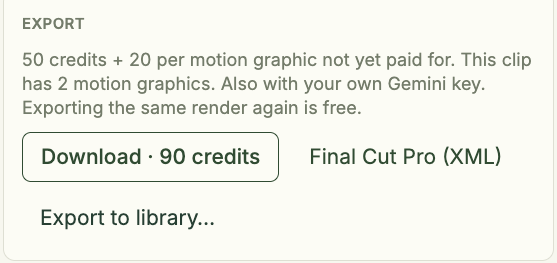
- Exporting costs the clip fee, 50 AI credits, plus 20 credits for each graphic not yet paid for. Each graphic is paid for once: exporting again or retrying costs nothing more for it. Like the clip fee, it applies with your own Gemini key too.
The Share & export tab shows the total first, for example "50 credits + 20 per motion graphic not yet paid for. This clip has 2 motion graphics." beside Download · 90 credits. Clip Maker checks you can pay for the clip and its graphics together before it charges anything, then shows "Getting the motion graphics (charged once each)…" and "Rendering the clip with its motion graphics…". If a render fails, Try again costs nothing more.
Your video stays on your computer
Clip Maker draws each draft on your computer, draws the unmarked graphic there when you export, and renders the clip there too. Your source video never uploads. To write a graphic, the AI reads only what is said around that moment and your description.
Practical details
- Requirements: Clip Maker with the current 5am CLI running
5am studio, plus the Motion runtime: run5am update --runtime-only, then restart5am studio. Without it, the Look tab has no Motion graphics group. - Before adding one: save or undo your Look changes, and let a re-render finish.
- Final Cut Pro: a clip with graphics exports like any clip, each graphic on its own clip above the storyline. See Finish Your Clip Maker Clips in Final Cut Pro.
Get started
5am update
5am update --runtime-only
5am studio
Then open Clip Maker, play a clip to the moment someone says the number that matters, and give it a graphic.