Nobody makes a film alone. The director wants the title to hold a beat longer. The client thinks the cut into the second scene is abrupt. The editor has three questions about the captions. Usually all of that arrives in a long email thread, with notes like "around the six-second mark, where it changes", and someone spends the afternoon working out which version everyone was watching.
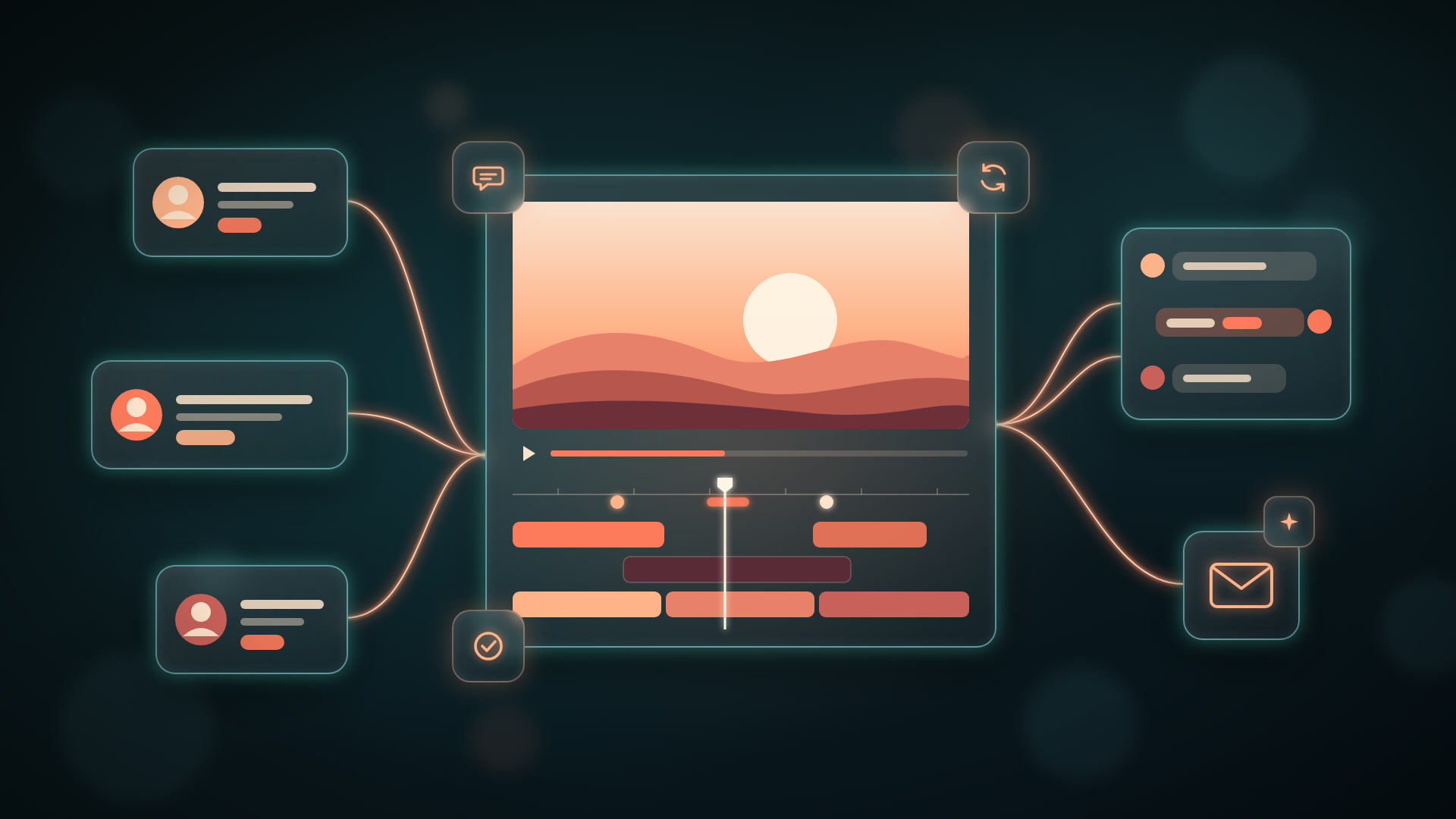
The Video Editor now brings the whole team into the project itself. Share it with the people you work with, and they can leave notes pinned to the exact moment on the timeline, talk the edit through in a chat that knows about timecodes, and see each other's notes, messages and new versions as they happen.
Bring your team in
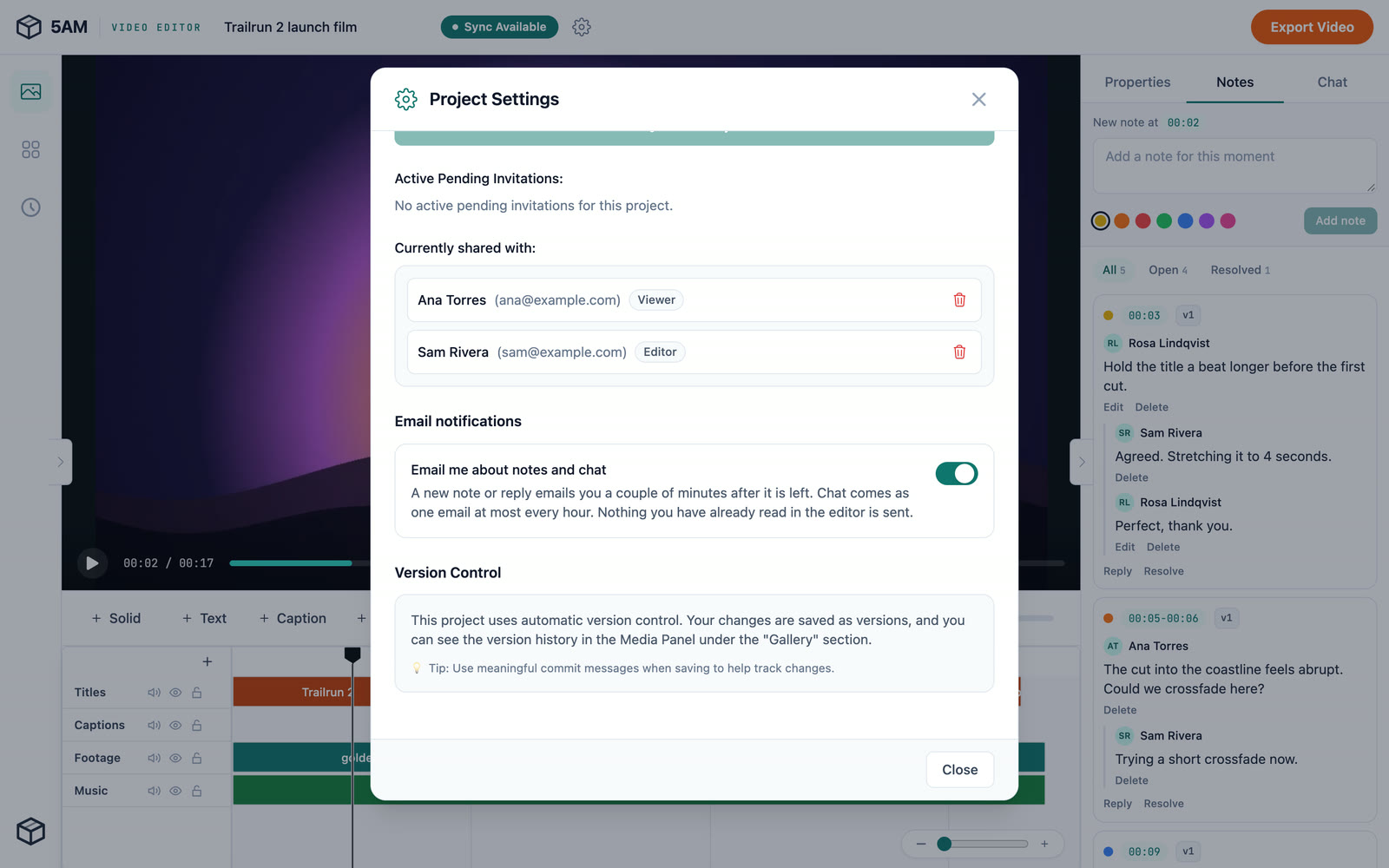
Open a saved project, choose the gear next to its name for Project Settings, and add people by email under Project Sharing. Give each of them a role:
- Editors work on the timeline with you. Their saves become new versions of the project.
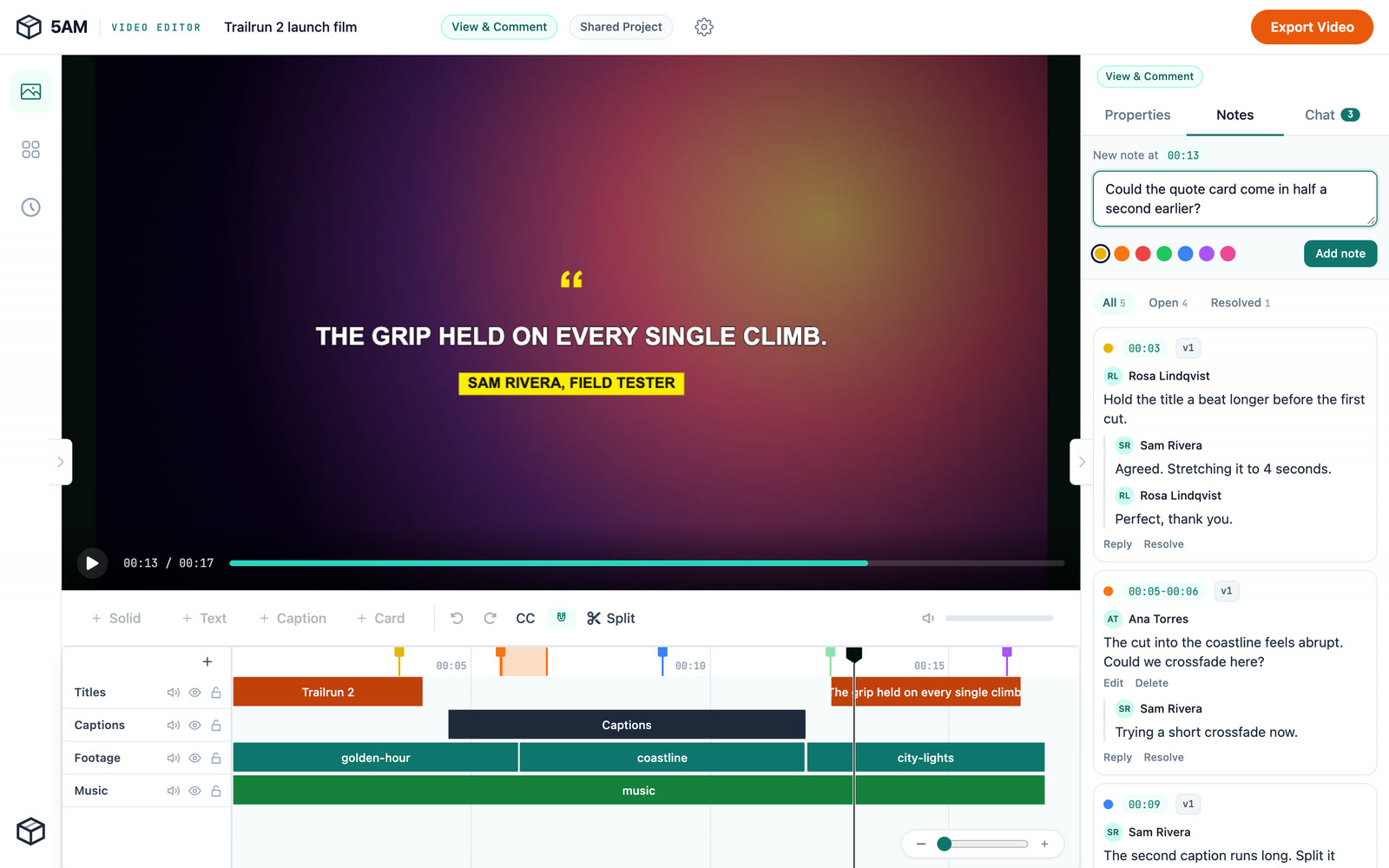
- Viewers watch, leave notes and chat, and never change the edit. The Video Editor tells them so with a View & Comment badge.
Someone who does not have a 5AM account yet gets an email invitation, and its link adds them to the project once they sign up. Currently shared with lists everyone and their role, and you can remove anyone from there.
Notes pinned to the moment
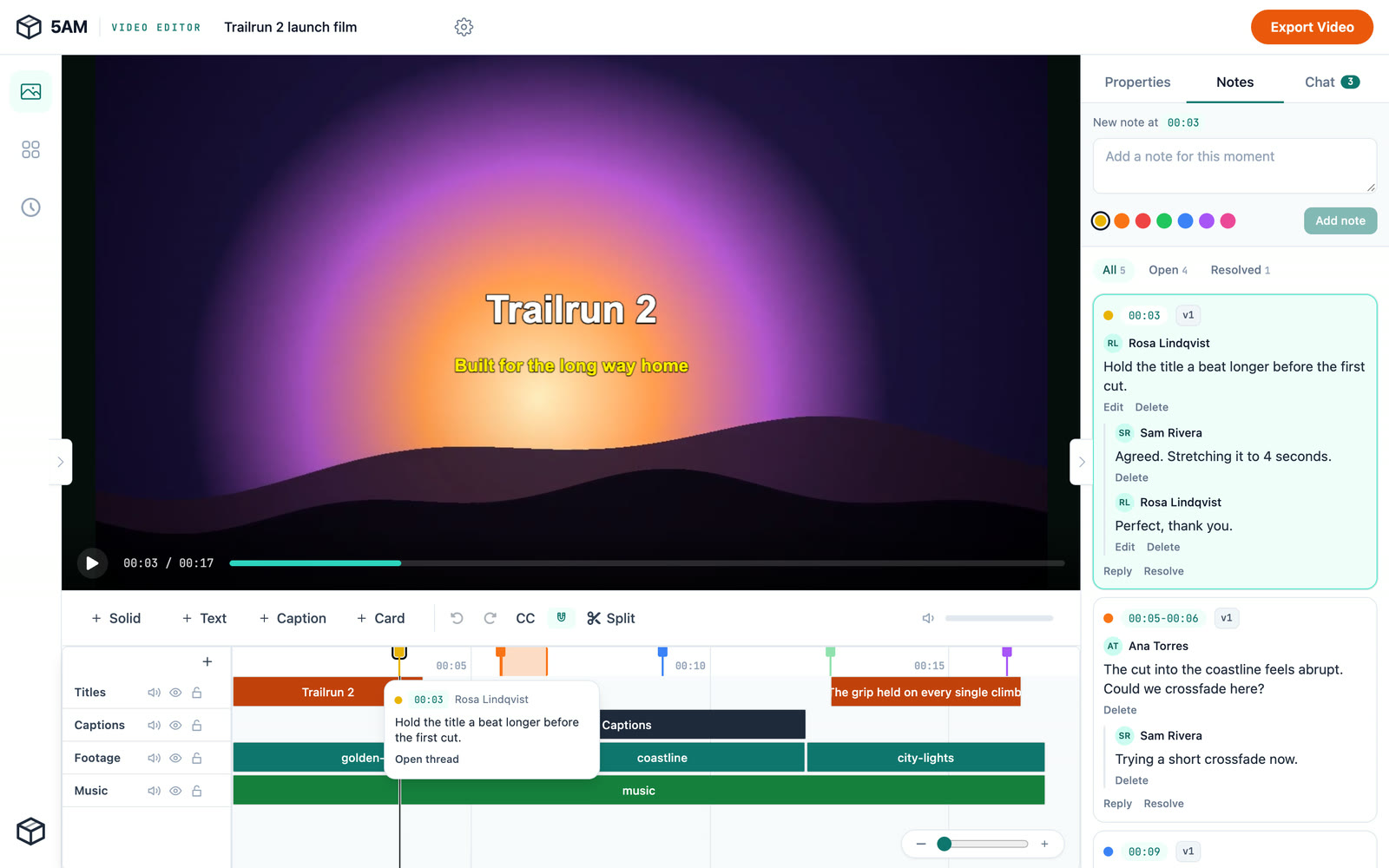
The Notes tab sits next to Properties on the right. A note belongs to a moment of the edit, so nobody has to describe where they mean:
- Add a note at the playhead: type it and choose Add note. Pick a color to tell kinds of feedback apart.
- Press M on the timeline to start a note right where you are.
- Shift and drag on the ruler to mark a stretch, for feedback like "this whole section drags".
Every note shows up as a pin on the ruler above the timeline, and a range shows as a band. Click a pin to read it, or click the time on a note to jump straight there. Each note also carries the version it was written on (v3, say), so when the edit has moved on you can still tell which cut someone was looking at.
Notes are conversations. Reply to talk a change through, then Resolve the thread once it is done, and All, Open and Resolved filter the list. If a note points past the end of a timeline that got shorter, it stays in the list, so feedback never disappears with the footage it was about.
One chat for the project
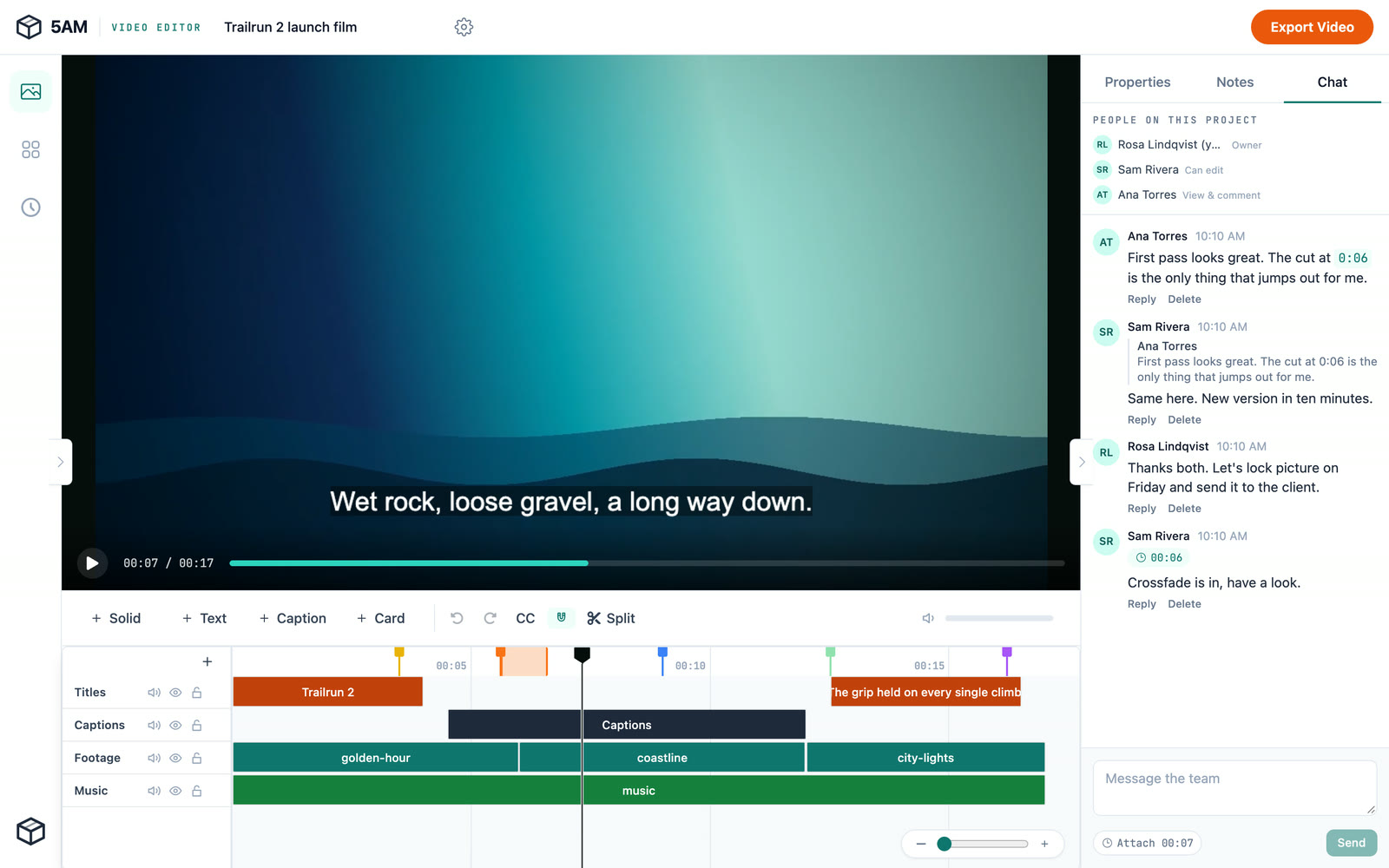
Some things are not about a single moment: when to lock picture, who sends it to the client, whether the music works at all. The Chat tab is one conversation for everyone on the project, with the people and their roles listed at the top.
Type a time like 0:06 or 01:30 in a message and it becomes a link: click it and the playhead goes there. Attach pins your current playhead time to a message, and Reply quotes the message you are answering. When someone writes while you are busy elsewhere, the Notes and Chat tabs show how many things are new.
Viewers comment, the edit stays yours
A client, a producer or a subject in the film can be on the project without any risk to the cut. Viewers open the same project, play it, and land on the Notes tab. The editing tools are switched off for them, and their notes and messages go to everyone like anybody else's.
Everyone stays in sync
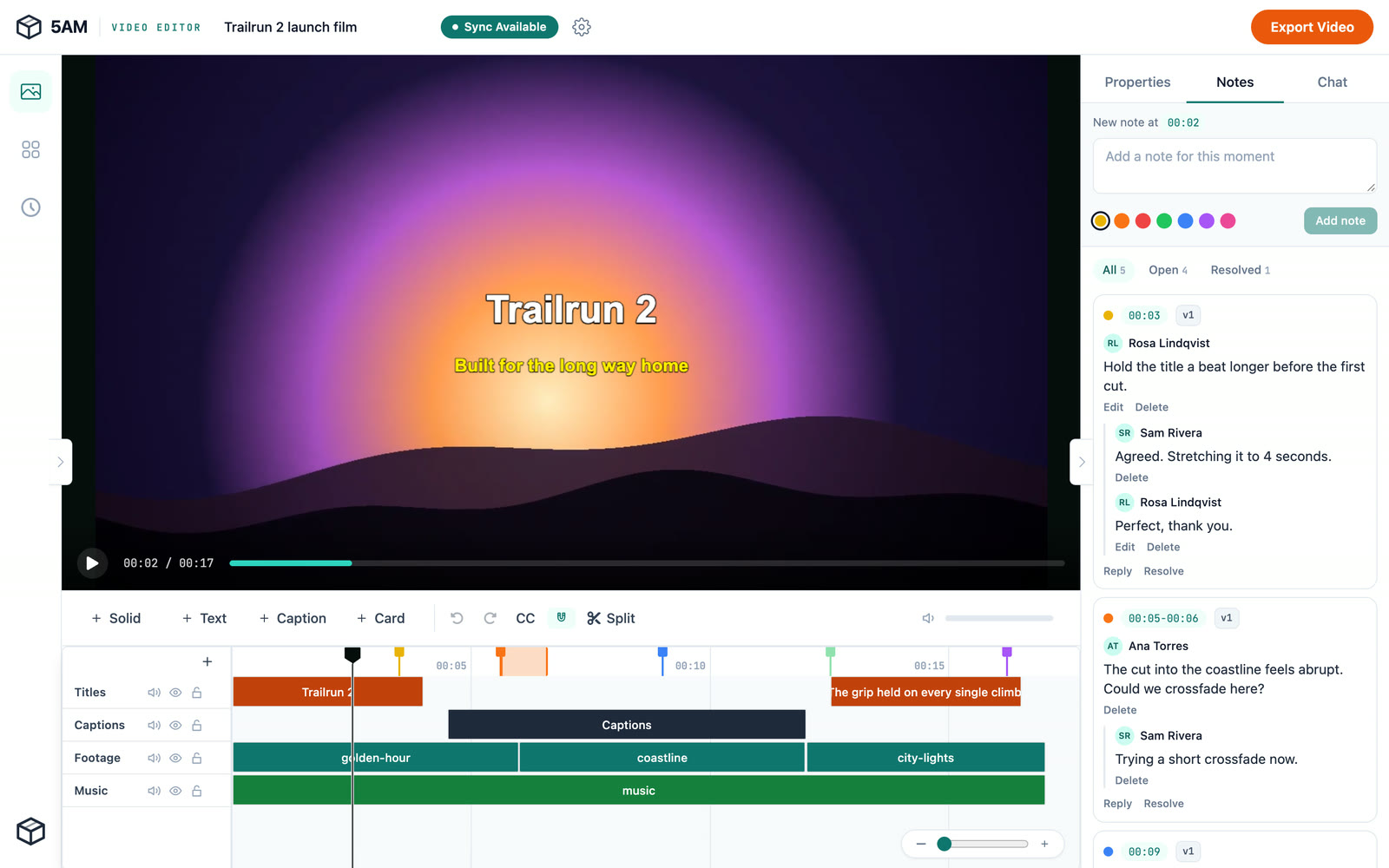
Notes and messages arrive the moment they are written, with no reload. When an editor saves a new version, everyone else with the project open sees Sync Available at the top, and one click brings the new version in.
This is not live co-editing with everyone's cursor on screen. Each editor works on the timeline and saves, and saves made at the same time are merged automatically, so two people trimming different clips both keep their work. When two edits touch the same thing, you are told what was merged. Every save is a version you can go back to from Version History.
Media follows the people who bring it. When a collaborator adds clips from their own library and saves, those clips play for everyone on the project. If someone leaves or you remove them, their clips leave with them, and the Video Editor tells you which clips can no longer play so you can replace them.
Email when you are away
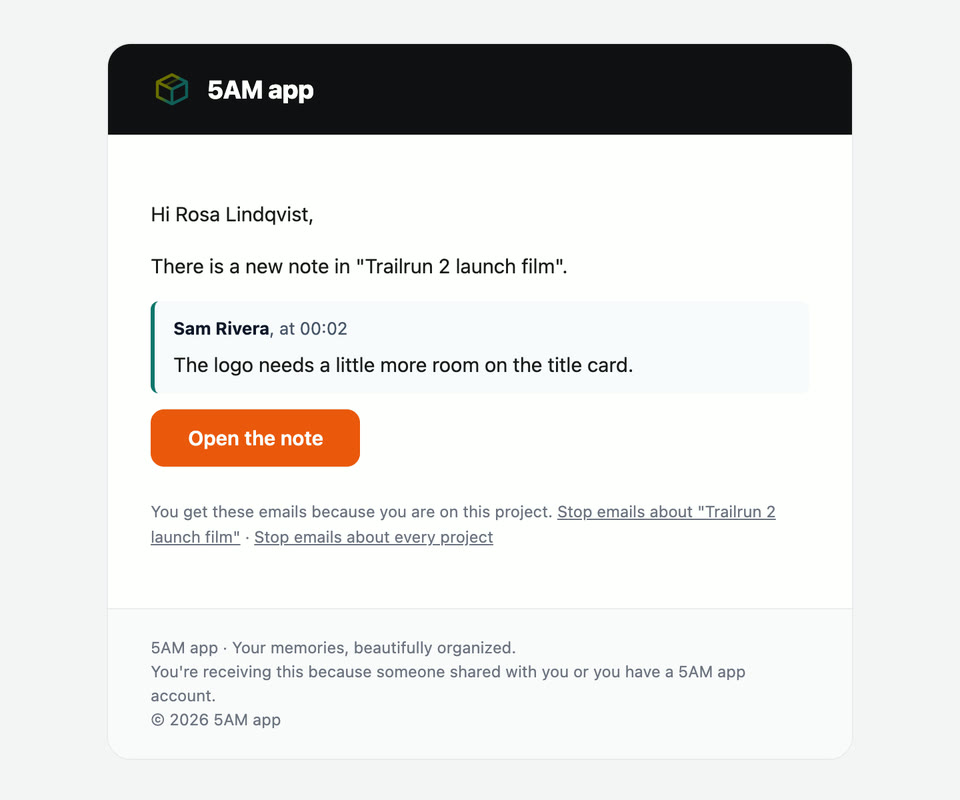
Notes and chat also reach people who are not in the Video Editor. A new note or reply is emailed to everyone else on the project a couple of minutes after it is left, with the note itself and a button that opens the project with that note selected. Chat comes as one email at most every hour, and nothing you have already read in the project is sent again.
Each person decides for themselves: Email me about notes and chat in Project Settings turns them off for that project, and every email has links to stop emails for one project or for all of them.
A faster timeline for the work itself
Collaboration came with a round of editing improvements, many of them about keeping a shared timeline tidy:
- Snapping. Clips snap to the playhead, to each other's edges and to note pins. Press N or use the magnet to turn it off, and hold Cmd or Ctrl to drop exactly where you let go.
- Mute, hide and lock tracks. Lock a track so the approved part cannot be moved by accident; the lock is saved with the project, for everyone on it. Hide a layer to see what is under it, and mute a track to hear the mix without it.
- Add at the playhead. Solid, Text, Caption and Card land where you are, on a free track above your footage.
- Edit on the picture. Select, move, resize and crop layers directly on the preview, and double-click text to change it in place.
- Move several clips at once. Select them and drag; they keep their spacing.
Captions, together
Captions are where many review notes end up, so they got a full editor:
- Auto-captions (AI) transcribes the audio of the whole timeline, labels the speakers, and only replaces your captions once the run has finished. Leave halfway and nothing changes. It runs on your own Gemini key or your AI credits.
- Every cue is editable: its words, its start and end, and Split, Merge and Add after. The preview shows the cue under the playhead as you work.
- Import SRT or VTT, and export your captions as SRT or VTT for a platform or a translator.
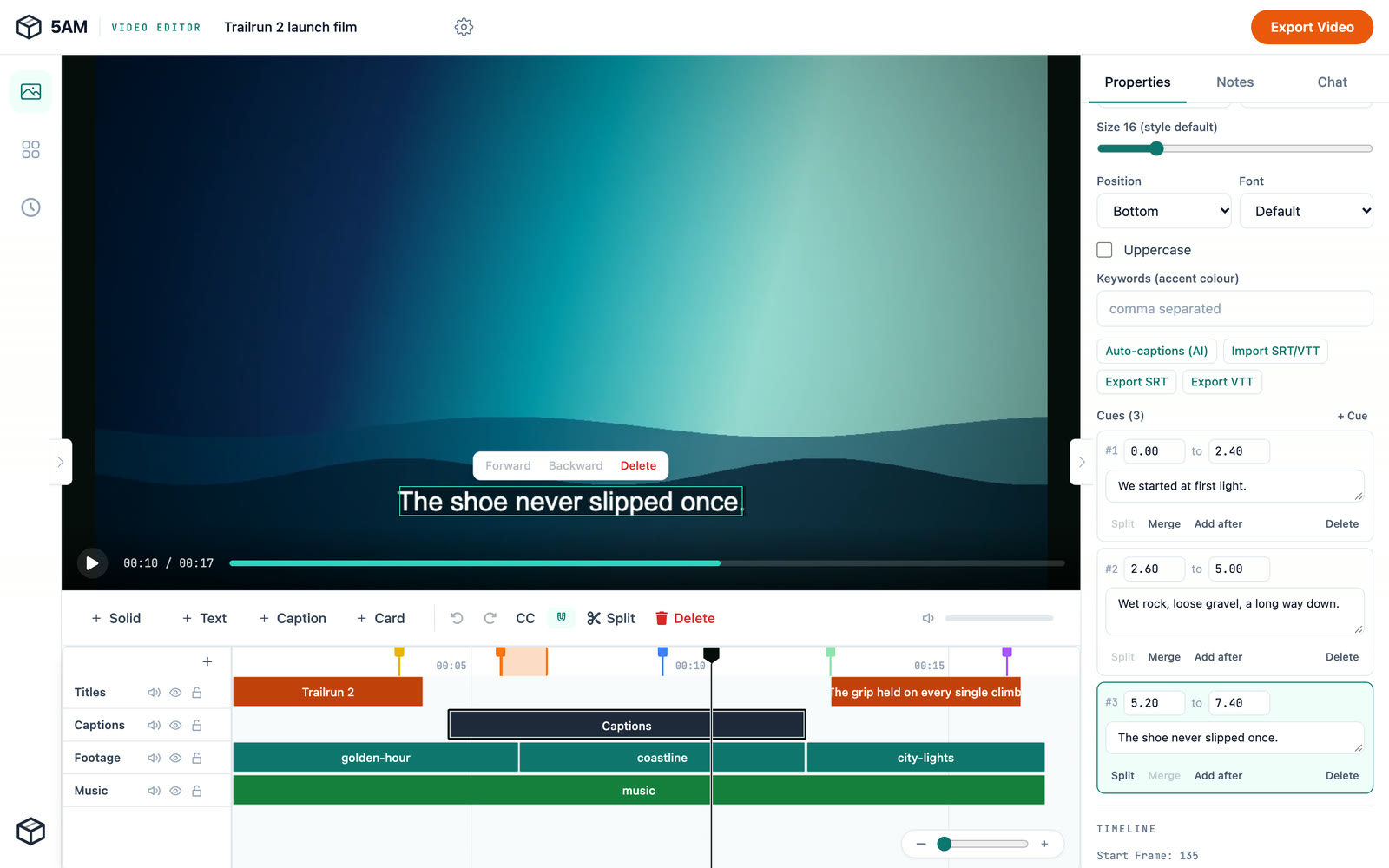
Clips you make in Clip Maker can come along too. Turn on Keep it editable when you export, choose Open in Video Editor, and the clip arrives as a project with its captions laid out the way they look in the clip, ready to share with your team.
Pricing
Sharing projects, notes, chat and email updates are on every plan, the free plan included. Media you add counts toward your own storage, and auto-captions use your Gemini key or AI credits like the rest of 5AM's AI tools.
Get started
- Open the Video Editor and save your project.
- Choose the gear next to the project name, add your collaborators under Project Sharing, and pick Editor or Viewer for each.
- Leave the first note with Add note, or press M on the timeline.
Your team gets the project in their own Video Editor, and from then on the feedback lives where the edit is.